Ping Monitoring
Ping monitoring checks whether a host is reachable over ICMP and how quickly it responds. Use it to detect host-level availability issues before application-layer checks are affected.
Overview
Ping monitoring sends ICMP echo requests to your target host and measures whether it replies within the configured timeout. Unlike HTTP, DNS, or Port monitors which operate at the application layer, Ping operates at the network layer (Layer 3) and checks basic host reachability.
Ping is useful for:
- Confirming a server is powered on and connected to the network
- Detecting routing or infrastructure issues before they affect services
- Tracking baseline host latency over time
- Monitoring devices that don't run HTTP/DNS services (routers, switches, IoT devices)
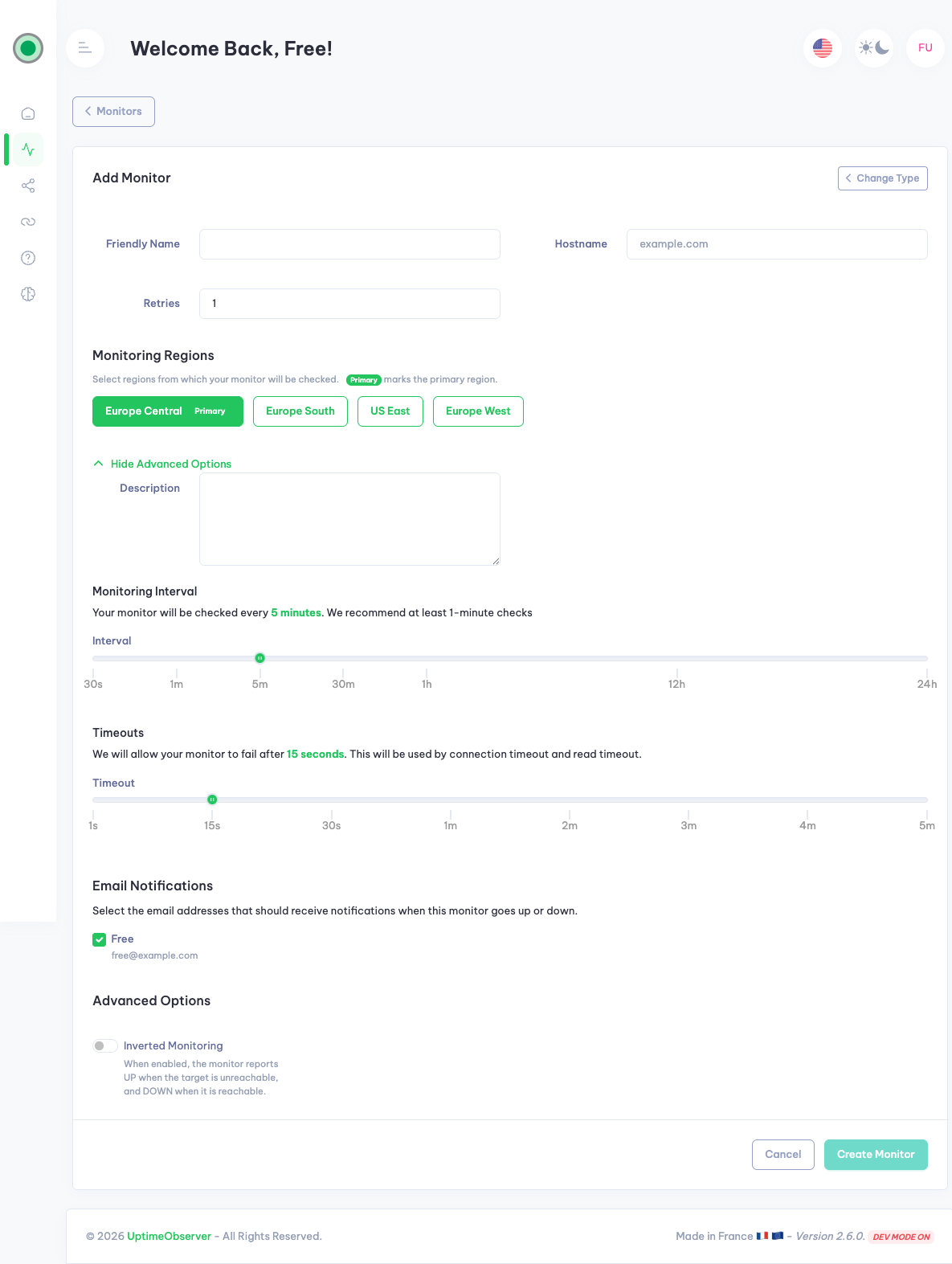
Configuration Options
Hostname
Enter the target hostname or IP address for the ping check.
| Input Type | Example | Use Case |
|---|---|---|
| Domain name | example.com |
Monitor a server by its DNS name |
| IPv4 address | 1.1.1.1 |
Monitor a specific IP directly |
| IPv6 address | 2606:4700:4700::1111 |
Monitor over IPv6 (if supported) |
Use a stable address
Use a hostname or IP that doesn't change frequently. If you use a hostname, DNS resolution occurs before each check.
Check Interval
Choose how often UptimeObserver sends a ping check.
| Interval | Best For |
|---|---|
| 30 seconds (Pro) | Critical infrastructure, rapid failure detection |
| 1 minute (Indie+) | Important servers, ISP monitoring |
| 5 minutes (Free+) | General host health verification |
Timeout
Define how long to wait for a ping reply before marking the check as failed.
| Timeout | Trade-off |
|---|---|
| 1 second | Aggressive — detects failures fast but may false-positive on jitter |
| 15 seconds | Default — balanced for most environments |
| 30+ seconds | Conservative — fewer false positives, slower detection |
Common Settings
Like all monitor types, Ping monitors also support: - Friendly Name — A descriptive label for your monitor - Retries (0–5) — How many times to re-check before declaring a failure - Description — Notes for your team - Monitoring Regions — Select regions to monitor from - Alerts — Configure notifications for up/down events
When to Use Ping vs Other Monitor Types
| Scenario | Recommended Monitor | Reason |
|---|---|---|
| Verify a web server is responding to HTTP requests | HTTP | Checks application-layer availability and response codes |
| Verify DNS records are correct | DNS | Validates DNS configuration and propagation |
| Check if a specific port is open | Port | Verifies TCP connectivity to a specific service |
| Confirm basic host reachability | Ping | Lightweight Layer 3 check |
| Monitor network infrastructure (routers, switches) | Ping | Devices may not run HTTP services |
| Verify that a scheduled task or cron job ran successfully | Heartbeat | Reverse flow — your system pings UptimeObserver on success |
Best Practice
Use Ping as a complementary check alongside HTTP, Port, or Heartbeat monitors. Ping tells you if the host is reachable; HTTP/Port tell you whether the service is working, and Heartbeat confirms whether the job actually ran.
Common Use Cases
| Use Case | Configuration | Notes |
|---|---|---|
| Server health check | Hostname: app01.example.com, Interval: 1 min |
Verify the server is online |
| ISP gateway monitoring | IP: 192.168.1.1, Interval: 5 min |
Detect ISP outages |
| Cloud instance reachability | Hostname: ec2-1-2-3-4.compute-1.amazonaws.com, Interval: 1 min |
Confirm instance is running |
| Infrastructure baseline | Hostname: core-router.example.com, Interval: 5 min |
Track long-term host latency |
| IPv6 connectivity | IPv6: 2606:4700:4700::1111, Interval: 5 min |
Verify IPv6 stack and routing |
Troubleshooting
Frequent Timeouts
- Confirm the target host is online and reachable from outside your network
- Check firewall rules — ICMP traffic is often blocked by default on host firewalls (iptables, Windows Firewall) and network firewalls
- Cloud provider restrictions — Some cloud providers (AWS, GCP, Azure) disable or rate-limit ICMP by default. Check your security group and network ACL rules
- Corporate network filtering — Corporate networks may block ICMP at the perimeter. Test from an external network (e.g., mobile hotspot) to rule this out
- Increase timeout if your network has variable latency (satellite links, long-distance routes)
Intermittent Failures
- Test from multiple networks to isolate routing issues
- Verify no upstream filtering drops ICMP packets (ISPs may deprioritize ICMP during congestion)
- Correlate incidents with provider/network maintenance windows
- ICMP is a low-priority protocol — intermittent loss during peak traffic may be normal
Host Resolves but Does Not Reply
DNS resolution can succeed while ICMP traffic is blocked at the host or network level. If ICMP is intentionally blocked:
- Use an HTTP monitor if the host runs a web server
- Use a Port monitor to check a specific TCP port
- Contact your hosting provider or network administrator to enable ICMP
ICMP vs TCP Monitoring
| Aspect | Ping (ICMP) | HTTP/Port (TCP) |
|---|---|---|
| Protocol | ICMP (Layer 3) | TCP (Layer 4) |
| Firewall-friendly | Often blocked | Usually allowed for web services |
| Service-level check | Host reachable | Service responding |
| Latency measurement | Round-trip time | Application response time |
Need Help?
If you need help tuning Ping monitoring for your infrastructure, contact support and include: - Target host/IP - Current interval and timeout settings - Timestamp of recent failed checks
This helps us diagnose issues faster.