Slack Integration Guide
Overview
Integrating Slack with UptimeObserver allows you to receive real-time alerts and status updates directly within Slack channels. This ensures you can quickly respond to downtime, latency issues, and other incidents affecting your website or services.
Note
Slack integration is offered exclusively on paid plans.
Step-by-Step Connection
- Go to UptimeObserver and log in to your account.
- Navigate to the Integrations section from your dashboard.
- Choose Slack from the list of available integrations.
- Click on "Add Slack Configuration"
- You will be redirected to Slack. Select your Workspace, choose the channel where you'd like to receive notifications, and then click "Allow."
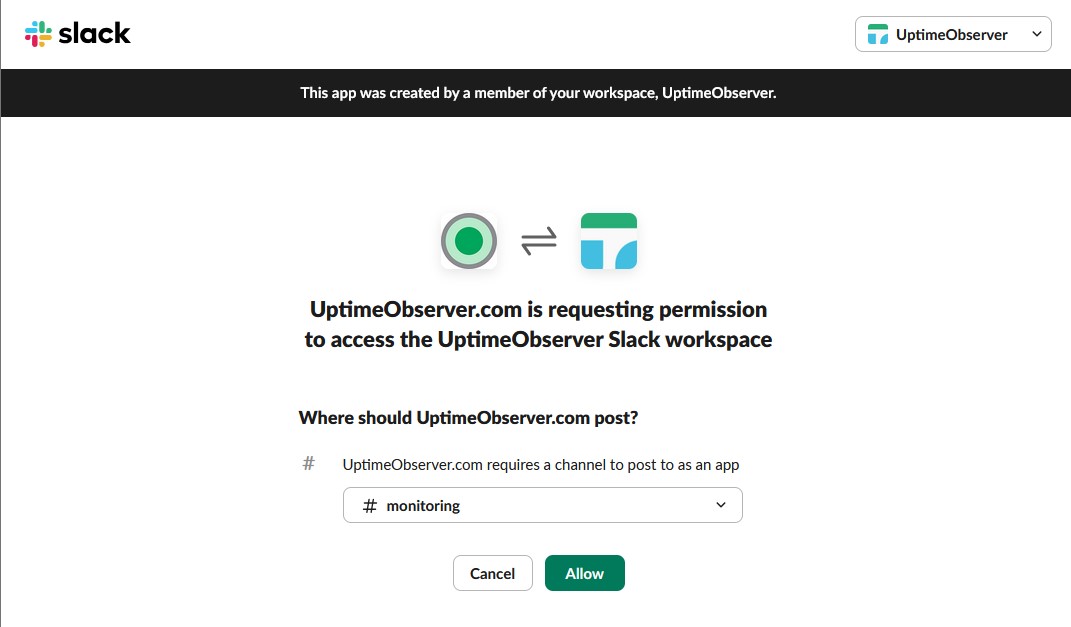
- Once you authorize UptimeObserver to post to your channel, you will be redirected to the Slack integration screen
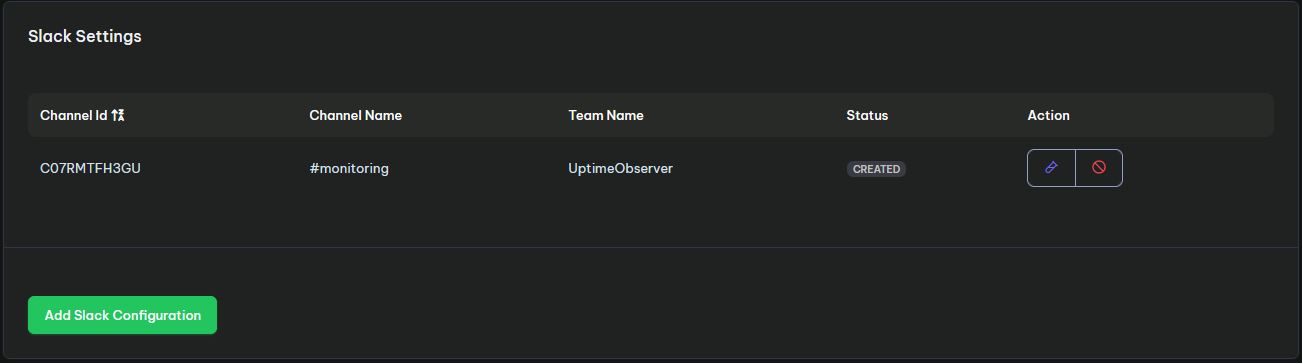
- The Status of your integration should be in status Created. To make sure it is working as expect, you need to run a test by clicking on the test button.
- If everything is ok, Status will turn into Active.
Enabling Alerts on Monitors
After you have successfully integrated Slack with your UptimeObserver account, you must manually assign which monitors should send alerts to which channels. This allows you to customize notifications so that the right team sees the right events.
- Navigate to Monitors: From your dashboard, click on the specific monitor you wish to configure to enter its Monitor Detail page.
- Add Alert: Find the alerting section and click the Add Alert button.
- Select Alert Type: In the Alert Type dropdown menu, select Slack.
- Choose the Event: Pick the relevant trigger from the Event dropdown (e.g., Monitor Down, Monitor Up ...).
- Select Channel: Choose your preferred Slack channel from the Slack Channel dropdown.
-
Note: Only channels authorized during the integration setup will appear here.
-
Save Changes: Click the Save Changes button to activate the alert.
- Repeat as Needed: You can repeat this process to send different events to different channels (e.g., "Down" alerts to a
#critical-opschannel and "Up" alerts to a#generalchannel).
Note
We recommend setting up alerts for both "Down" and "Up" events. This ensures your team is notified immediately when an issue starts and, just as importantly, when it has been resolved.
Troubleshooting
If you are having trouble receiving alerts or setting up the integration, check the common solutions below.
1. The "Test" button failed
If you click the test button and the status does not turn Active, check the following:
- Permissions: Ensure your Slack user has the "Add Apps" permission for that workspace. If you aren't an admin, you may need to request approval from your Slack administrator.
- Restricted Apps: Some Slack workspaces restrict third-party apps. Check with your IT team to ensure UptimeObserver is on the approved apps list.
2. My Slack channel isn't appearing in the dropdown
If you have authorized UptimeObserver but can't see a specific channel when configuring a monitor:
- Private Channels: UptimeObserver may not be able to "see" private channels automatically. You often need to manually invite the bot to the channel. Type
/invite @UptimeObserver Botinside the Slack channel and then refresh the UptimeObserver settings page. - Re-authorization: If you recently created a new channel, you may need to click "Add Slack Configuration" again to refresh the list of available channels.
3. I'm not receiving notifications during downtime
If the integration is "Active" but you aren't getting alerts:
- Monitor Assignment: Verify that the alert is actually assigned to the monitor. Go to the Monitor Detail page and ensure Slack is listed under the "Alerts" section (see the Assigning Slack to Monitors section above).
- Event Triggers: Check if you selected the correct event. For example, if you only selected "Monitor Up," you will not receive a notification when the site goes down.
- Plan Limits: Ensure your subscription is active. If your paid plan expires or a payment fails, Slack integrations (a paid-only feature) may be temporarily paused.
4. How to Reset the Integration
If all else fails, a "fresh start" often helps:
- Go to the Integrations page in UptimeObserver and delete the Slack configuration.
- Go to your Slack Workspace -> Settings & Administration -> Manage Apps.
- Find UptimeObserver and remove it.
- Follow the Step-by-Step Connection Guide to reconnect.
How to Uninstall
In UptimeObserver:
- Go to UptimeObserver and log in to your account.
- Navigate to the Integrations section from your dashboard.
- Select Slack from the list.
- Click the delete button next to the Slack configuration you want to remove.
In Slack:
- Open your Slack workspace.
- Go to Settings & Administration → Manage Apps (or visit https://slack.com/apps/manage).
- Search for UptimeObserver in your installed apps.
- Click on the app and select Remove App.
Note
Removing the integration from UptimeObserver will stop all Slack notifications immediately. Removing the app from Slack as well ensures a clean uninstall.